


Whether your audio file is lost accidentally or because of any sort of device issues or virus attack, there’s often a chance to recover it. Fortunately, multiple DIY approaches or third-party Android data recovery software tools are available to get your lost audio files back. In this guide, we’ll help you explore different methods to recover deleted audio files from Android mobile.
Can You Recover Deleted Audio Files?
Yes, it’s often possible to get your lost or deleted audio files back – depending on several factors like the device you are using or how the files were lost. Many of the latest Android phones encrypt the files stored on the internal storage device. When encrypted files get deleted, recovery is possible only from existing backups or the Trash/Recycle Bin.
Before attempting recovery workarounds, try finding the exact reason for your audio file loss. Some common reasons include:
- Accidental Deletion, i.e., when you mistakenly delete audio files while browsing other files and folders on your Android smartphone.
- When you factory reset your Android mobile, it removes all its content, including your audio files, unless previously backed up.
- Failed or interrupted Android updates can lead to corruption of your storage, causing audio files to become inaccessible or disappear.
- If your Android device is infected by malicious programs like viruses or malware, all its stored items, including audio files, get deleted.
- Any sort of interruption during file transfers may corrupt or permanently lose audio files before copying finishes successfully.
How do I Recover Deleted Audio File from Android?
The recovery of deleted Audio file relies on the exact reason for its loss. Still, here are some universal methods that you can always try:
Method 01: Check the Recently Deleted Folder
Many of the latest Android smartphones maintain a temporary storage area to restore your deleted audio files. The Recently Deleted/Trash folder keeps all your deleted audio temporarily for some days (say 30 days); after that your audio get permanently removed. The exact recovery steps depend on the file management app installed on your Android mobile, but the recovery steps remain the same.
To recover lost or deleted audio files from the Trash folder on Android device:
- Open the Files app on your Android mobile.
- Click on the hamburger icon and then tap “Trash” or “Recycle bin” (depending on your Android version).
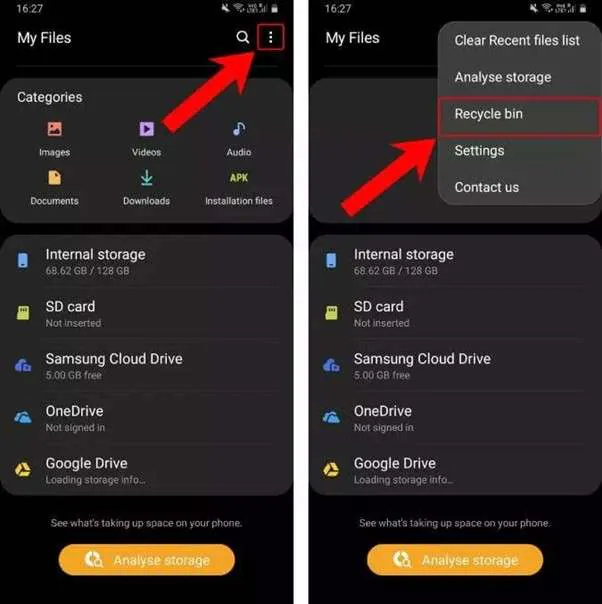
- Navigate through deleted files until you find the audio you want to move out of the Trash folder.
- Once found the required audio file, click on Restore to save them back to your mobile.
Method 02: Restore Audio Files from the Cloud
Cloud services connected to your Android mobile are also one of the ways to get your deleted audio files back. Sometimes, local backup gets deleted while the audio files remain in your cloud library. If you’ve synced your Android device with Google Drive, Dropbox, OneDrive or any other cloud backup utility, recovery is quite easier.
If your lost audio file is in any cloud backup, follow the below steps to get it back:
- Firstly, access the cloud account that you have used to back up your Audio file on your device.
- Search for the required audio file using its name, file format, or creation date.
- If file not available, go to the Trash/Recently Deleted folder, which stores mistakenly deleted files from your cloud storage.
- Preview recoverable files to confirm you are restoring the correct audio.
- Restore or download the audio file back to your Android phone or another secure storage place.
Method 03: Use Android Data Recovery Software Tools
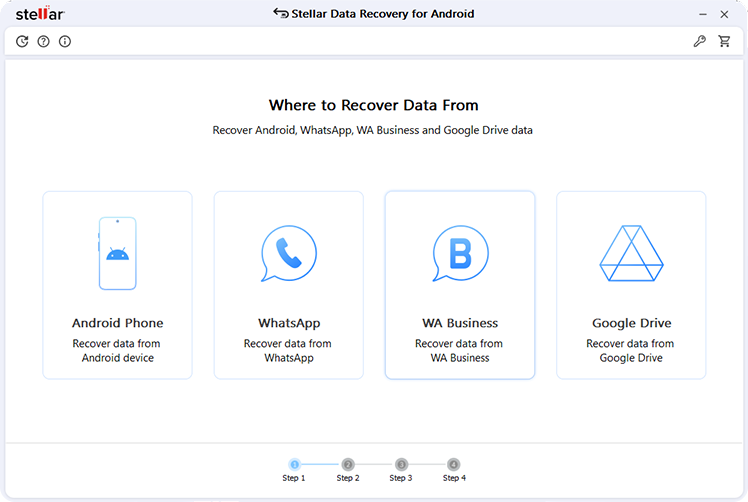
Data recovery from an Android device’s internal storage is usually arduous if you do not have any backup of lost audio files. In such cases, you can use software dedicated to Android data recovery like Stellar Data Recovery for Android. These tools support restoration of lost or deleted files of various types including photos, videos, audio files, documents, and much more. This software performs a thorough scanning of your Android internal storage and microSD cards to find recoverable files.
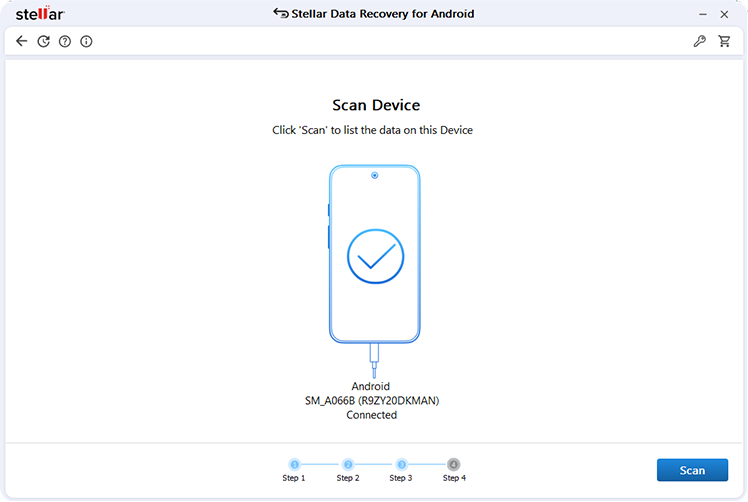
To increase your chance of success when using Android data recovery software, you need to apply the recovery process at the earliest. To restore your audio files using this recovery tool, follow the below steps:
- Download the Stellar Data Recovery for Android software on your PC. Install it and once done, launch the program. Choose “Android Phone” as you need to recover data from your Android device.
- Click Scan to initiate the scanning and wait till the software analyzes your phone’s file architecture and completes the scanning process.
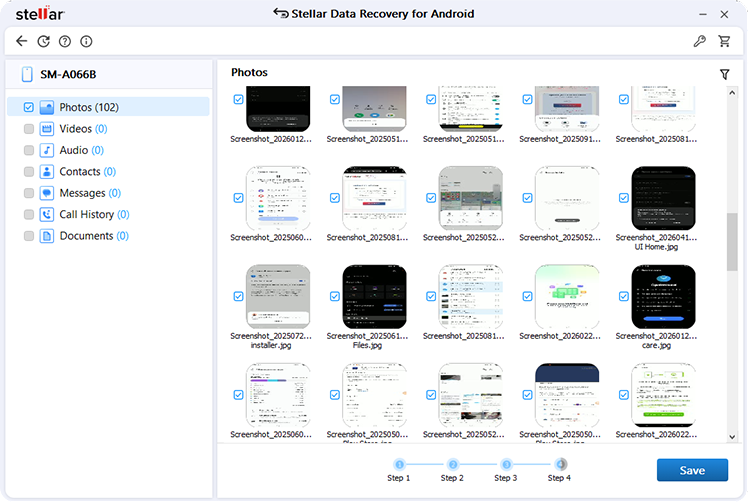
- Once the scan completes, preview the recoverable files. Select the target audio files and click Save to save them at a safe location on your PC.
Additional Tip: How to Avoid Losing Audio Files?
With the right preventive measures and backup strategies, you can keep your audio safe and accessible across all your devices. All you have to do is:
- Organize your audio files into different categories such as by artists and albums. This allows you to easily navigate through a huge number of audio files.
- Maintain multiple copies of your audio files to help you in sudden data loss issues. You can create backup on external storage devices or use cloud backup services like Google Drive, Dropbox, and OneDrive. You can also backup you data on other cloud storage alternatives.
- Install the latest update of Android OS on your mobile to benefit from bug fixes, security patches, and improved stability.
- Always safely eject the SD card from your Android device before removing it to avoid file system corruption.
Wrapping Up
If you lost any important audio file on Android mobile, don’t lose hope. Go with the aforementioned Android data recovery methods to restore your lost audio files. Before applying advanced recovery approaches, check the Recycle Bin or cloud backups. If there’s no backup, use third-party Android data recovery software like Stellar Data Recovery for Android.
Perhaps most importantly, refrain from using the device after the deletion in order to avoid data overwriting. Through the implementation of consistent backups and effective storage methods, the risk of losing valuable audio information can be greatly diminished.
Frequently Asked Questions (FAQs)
1. Can I recover lost audio files without a backup?
Yes, the best way of recovering your lost audio files is using Android data recovery tools. The chances of successful file recovery increase by avoiding using your Android phone from the moment you lost the audio files.
2. Where deleted audio files are found in Android mobiles?
Once your Android data (the audio files) is lost, it goes either Trash/Recycle Bin or are saved to the internal storage of your Android mobile until it has been overwritten.
3. How can I recover permanently deleted Audio files on Android?
You can restore the audio files that were permanently removed on Android using previous backups or third-party Android data recovery software.
